Portal Login and Profile Management
First Login
User credentials are provided by the Account Administrator. In case of issues regarding login, contact your Account Administrator.
Check that your web browser and version are concurrent with the list of supported versions:
- Mozilla Firefox (v.48 and later)
- Mozilla Firefox ESR (v.45 and later)
- Internet Explorer 11
- Edge (all versions)
- Safari 9+
- Google Chrome (v.52 and later)
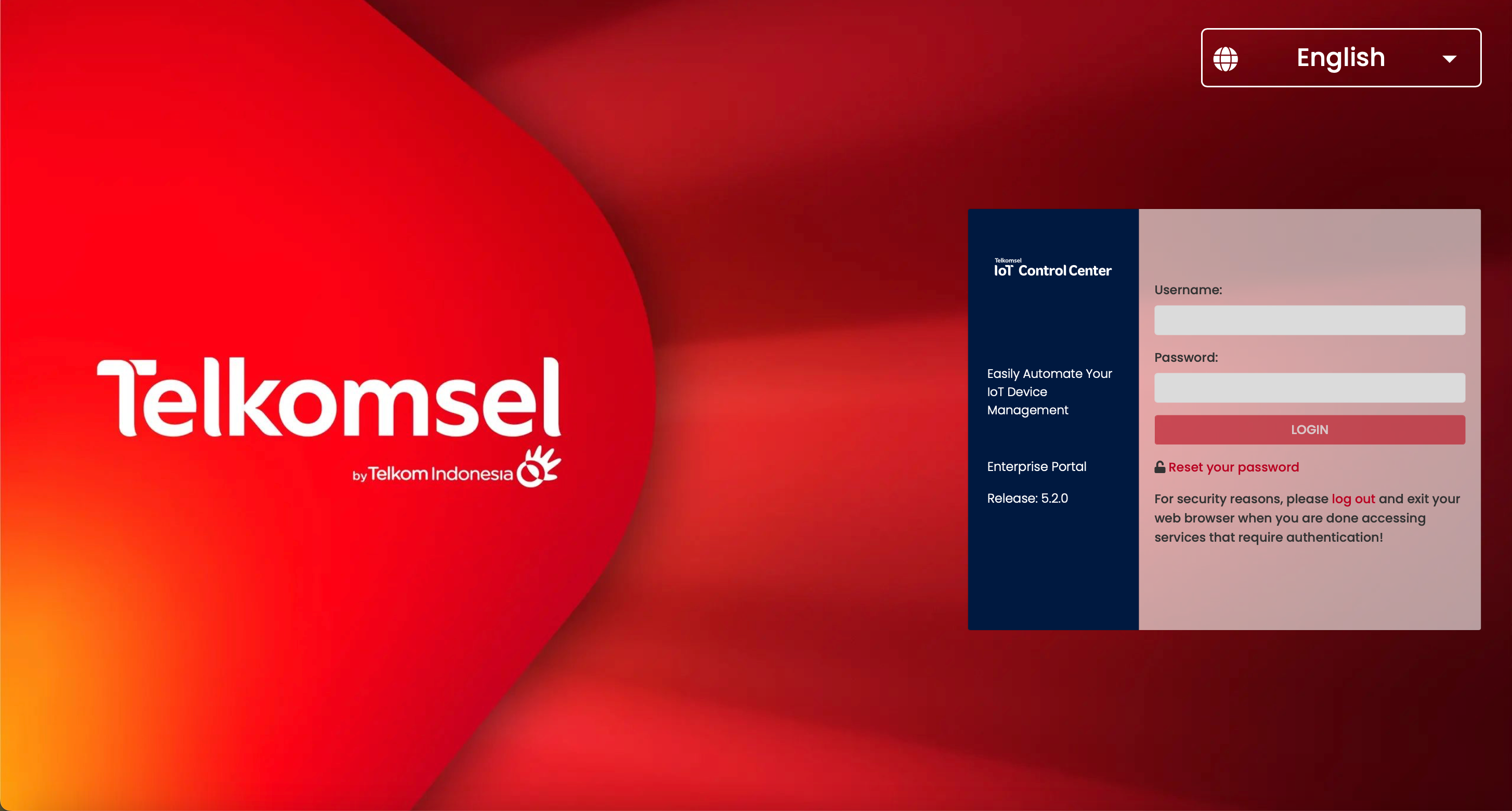
To log in to the Enterprise Portal:
- Enter the Enterprise Portal URL into the address bar of your browser.
- Select the language in which you want the application to appear.
- Specify your Username and Password.
- Click the Login button.
On first login, the User has to accept the Usage Policy.
Note:
If the CMP is configured accordingly, the User has to accept the Terms and Conditions on first login.

The single sign-on authentication allows Users to log in with a single username and password to CMP once and access the services of all CMP portals without re-entering authentication factors.
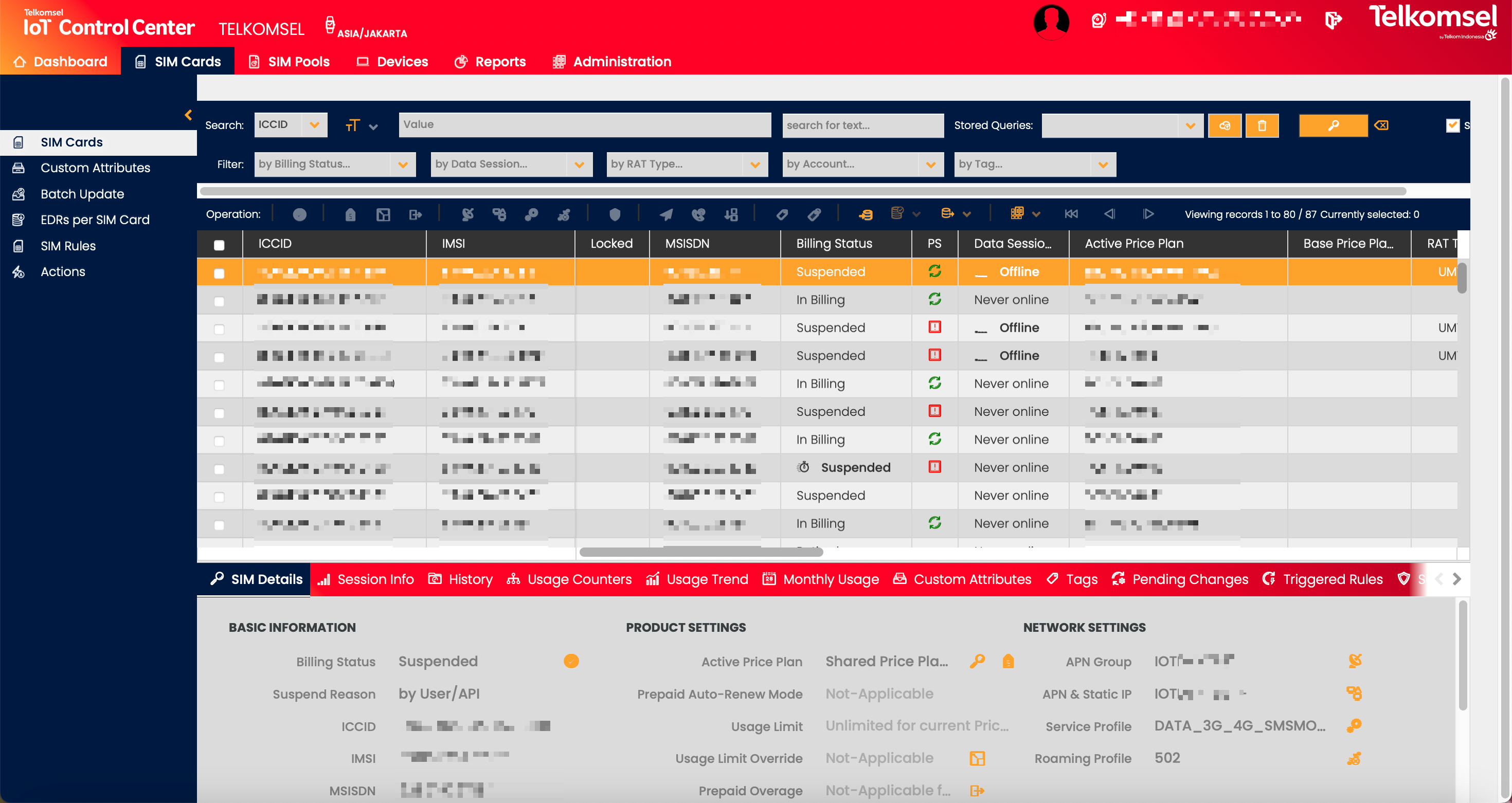
A successful login to the Enterprise Portal displays the SIM Cards section. For more information see the SIM Card Management section of the user manual.
Language
Language preferences can only be selected on the login page and the system will remember the last selected language for a User.
MAVOCO CMP supports English as the default language and support of Brazilian Portuguese and Spanish is available for selected customers.
Note:
Support of any additional language is an optional feature and only the licensed languages are visible on the login page.
The application will not translate User-generated content, such as automated emails, descriptions, notes, and News postings.
Reset Password
To reset the password of a User:
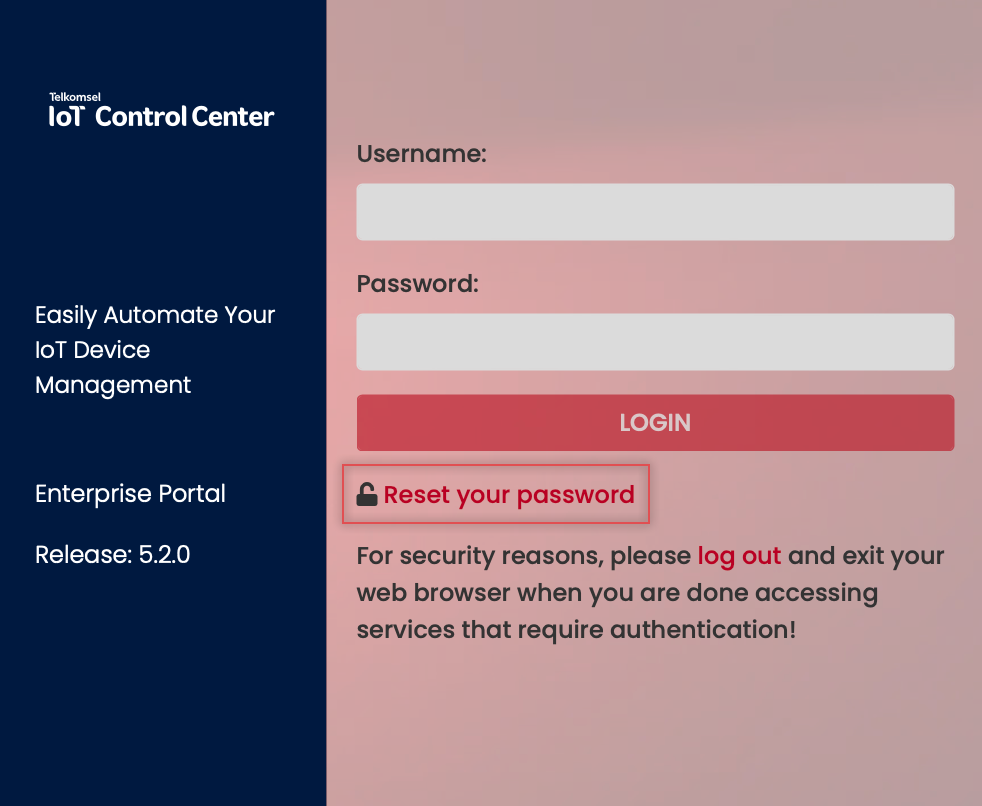
- Click on the Reset your password link on the login screen.
- Enter the Username of the User whose password you want to reset.
Note: The User will receive an email with the follow-up instructions.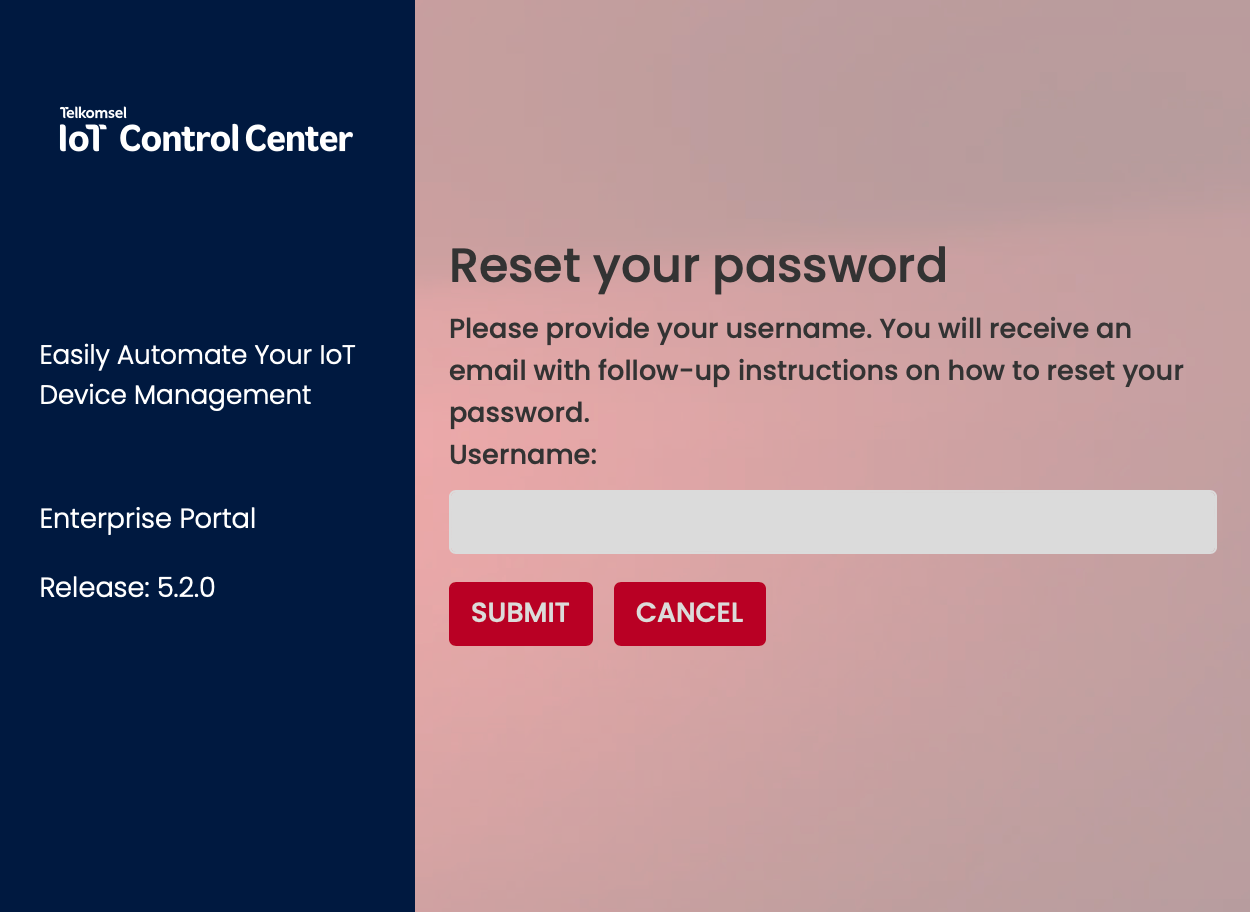
- Click on the reset password link in the email.
"Dear <defined login name>,
You have requested a password reset.
Your login name is: <defined login name>If you did not make this request then please ignore this email.
Otherwise, please use the following link to change password: reset password link"
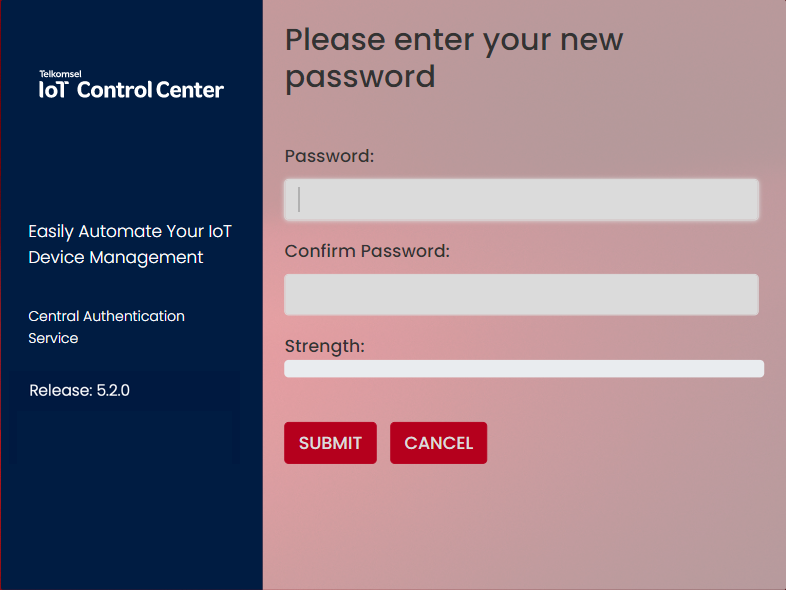
- Define and confirm the new password.
Basic Profile Management
To display the Enterprise Portal Profile management options, navigate to the right of the Heading Bar and click on the User's login name.

Show Profile
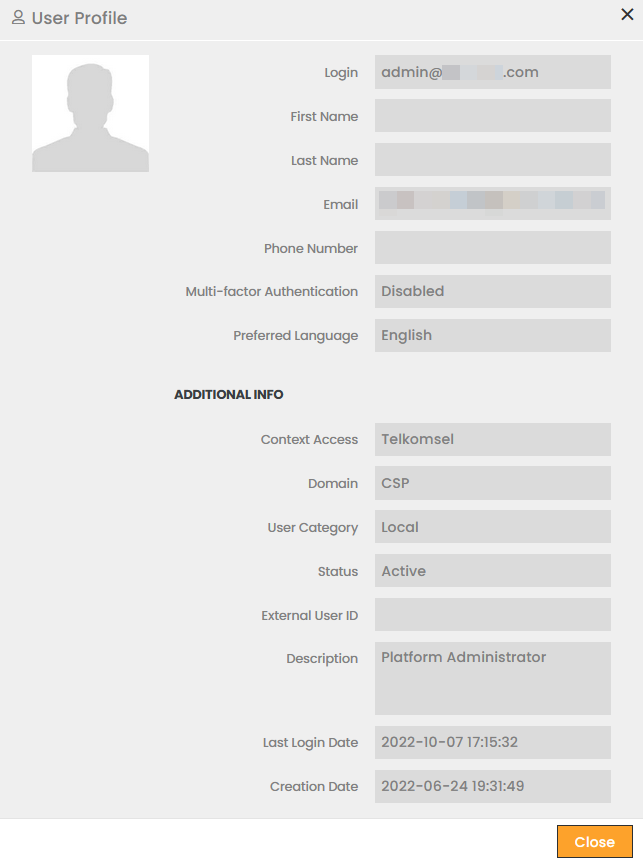
The Show Profile option allows Users to view the information defined for their User Profile.
To view a User's Profile:
- Click on the Profile Name.
- Select the Show Profile option.
Change Password
Profile Management also allows Users to change their passwords.
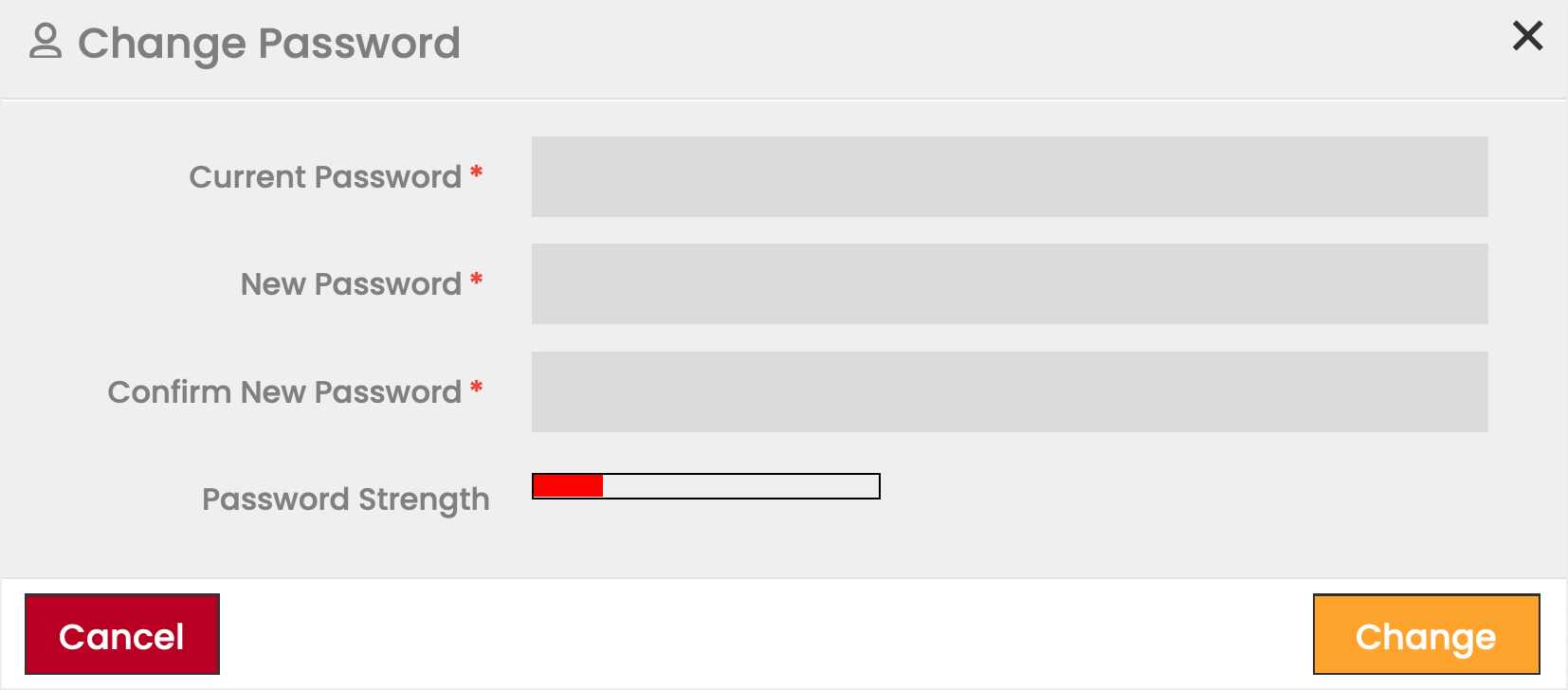
To change your password:
- Click on the Login Name.
- Select the Change Password option.
- Enter your Current Password.
- Enter your New Password.
- Re-enter the New Password for confirmation purposes.
- Click Change to apply the change.
Note:
Passwords must contain at least one digit from 0-9, lowercase characters, uppercase characters, special symbols like "!@#$%", a length of at least 8 characters, and a maximum of 20.
The Password Strength indicator will inform the User about the strength of the given password.
Change Language
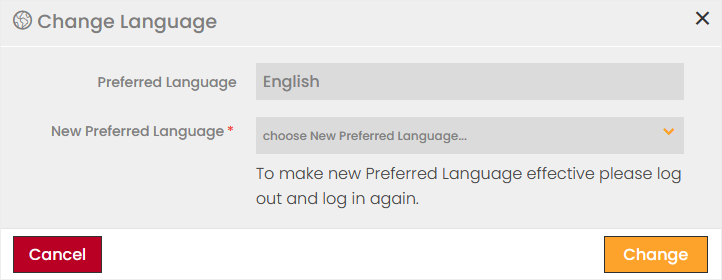
Users can change their preferred language in which the application appears while logged in using Profile Management.
To change the preferred language:
- Click on the Login Name.
- Select the Change Language option.
- Select the New Preferred Language from the available options in the dropdown list.
Note that only such languages are available for selection that are licensed on the CMP instance. - Click Change to apply your selection.
Note that to make the new Preferred Language effective please log out and log in again.
Change Color Scheme
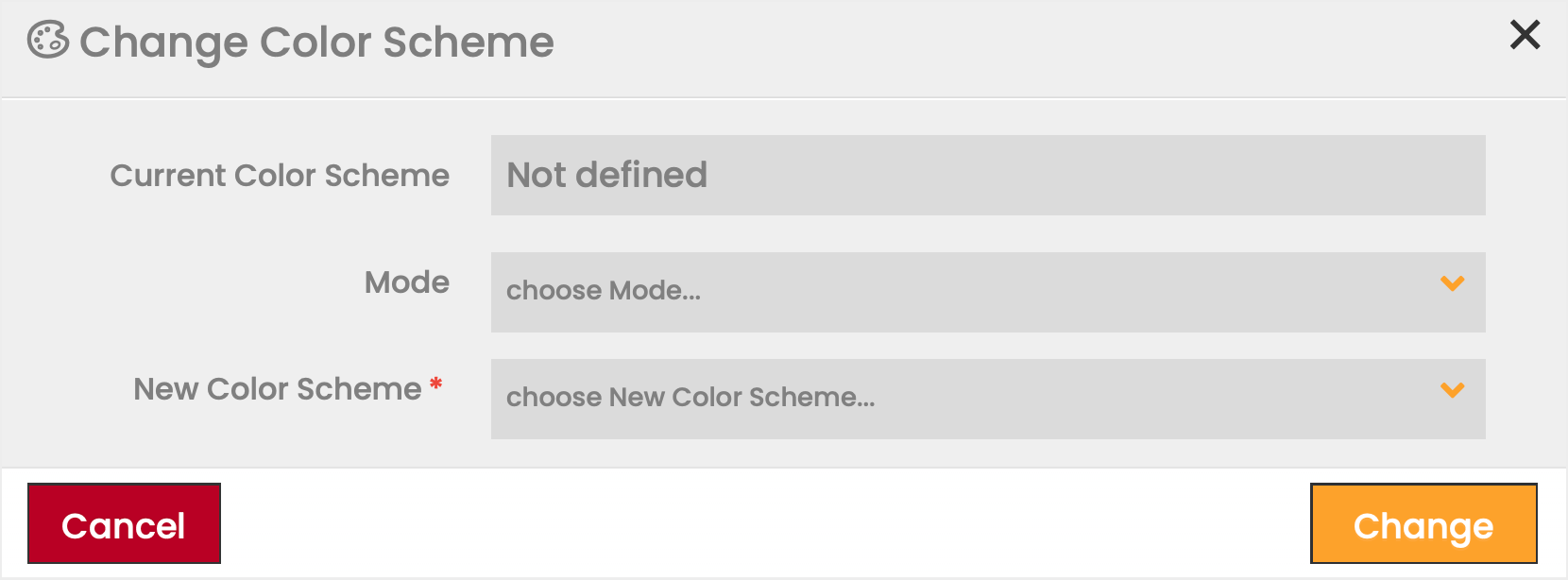
CMP allows users to choose their preferred color scheme from a list of predefined options. The color scheme chosen will be applied to the User until the next change.
To change the preferred color scheme:
- Click on the Login Name.
- Select the Change Color Scheme option.
- Optionally, filter the available options be selecting Mode.
- Select the New Color Scheme from the available options in the dropdown list.
- Click Change to apply your selection.
Note the selected color scheme will be applied immediately, there is no need to log out and log in again.
Logging out of the Enterprise Portal
There are two ways to log out of the Enterprise Portal. Select the Sign Out option from the Profile Management menu, or click the Sign Out  icon on the right side of the User's avatar.